Klaviyo
Send the unique codes of a set to a Klaviyo coupon. Every email recipient gets a different code, and new codes keep flowing to Klaviyo without exports or uploads. Available on the Pro and Unlimited plans.
How it works
- You connect your Klaviyo account once, with a private API key.
- You pick a set and choose Send to Klaviyo. DiscountFix creates a coupon in Klaviyo (or uses one with the same name) and sends it the set's unused codes, about 5,000 a minute.
- In Klaviyo, you add the coupon to an email or flow. Klaviyo gives each recipient one code from the pool.
- Codes you add to the set later are sent to the same coupon within a minute. With automatic refill, DiscountFix also creates new codes when the pool runs low.
Codes sent to Klaviyo belong to Klaviyo from then on: Shopify Flow won't hand them out, and the available codes export leaves them out. That way one code is never given to two people.
Get a Klaviyo API key
DiscountFix needs a private API key with access to coupons. It takes a minute in Klaviyo:
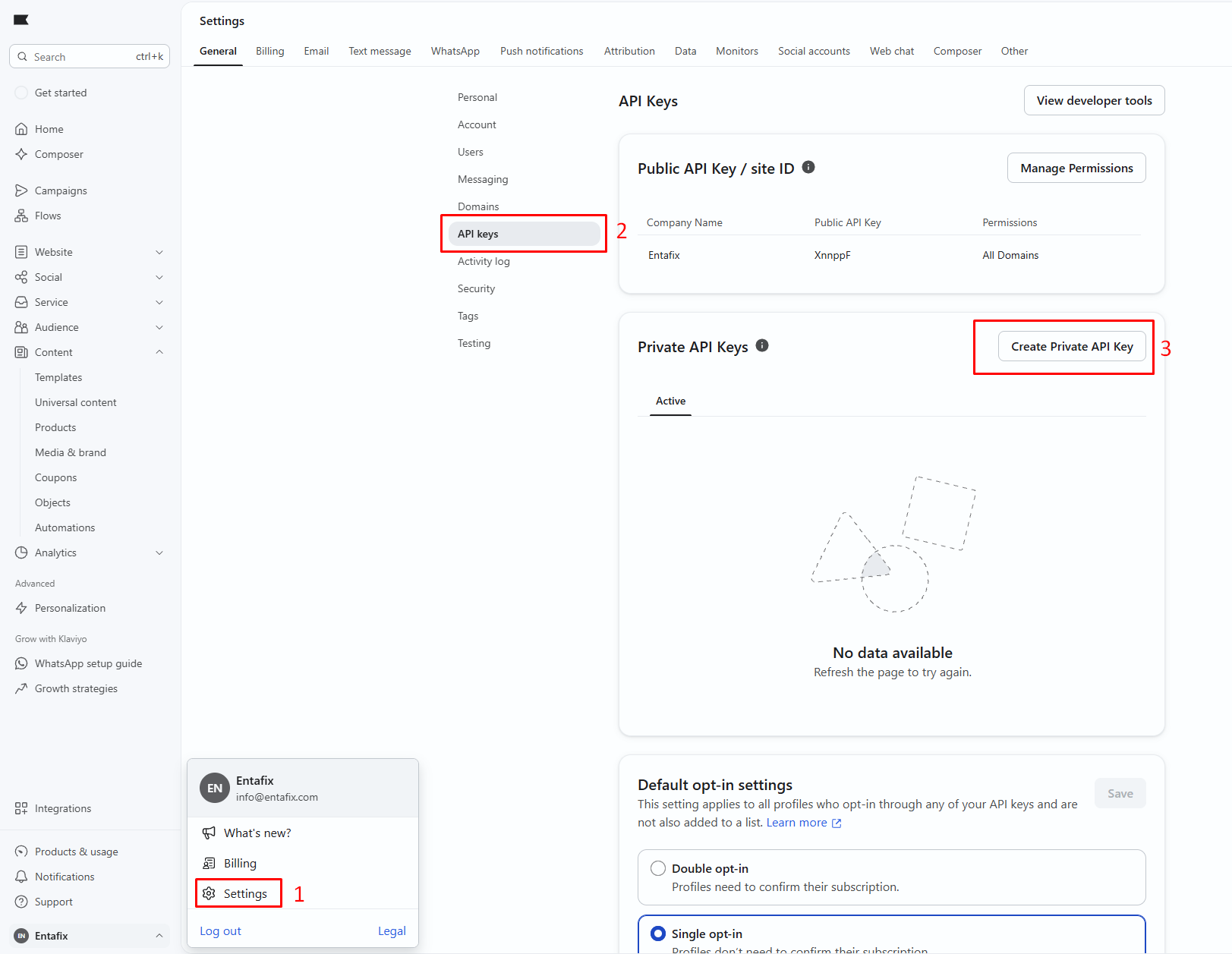
- In Klaviyo, click your account name at the bottom left and choose Settings.
- Under General, open API keys.
- Under Private API Keys, click Create Private API Key.
- Give the key a name you'll recognize, for example DiscountFix.
- Keep Custom Key selected. In the scope list, set Coupon Codes and Coupons to Full Access. Leave everything else on No Access.
- Click Create.
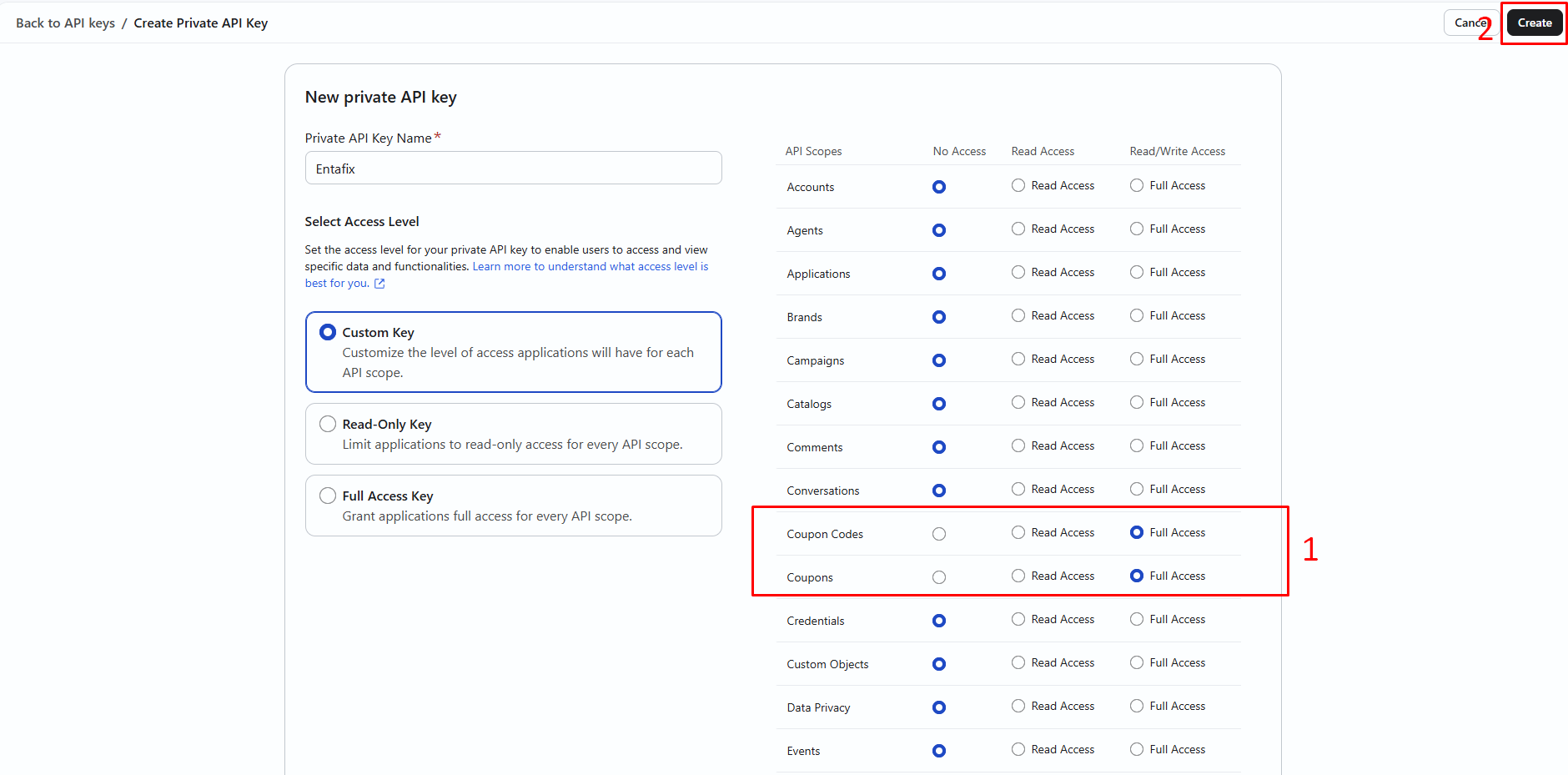
With only Coupons, DiscountFix can create the coupon but Klaviyo refuses the codes (missing required scopes: coupon-codes:write).
- Klaviyo shows the key once. Copy it (it starts with
pk_).
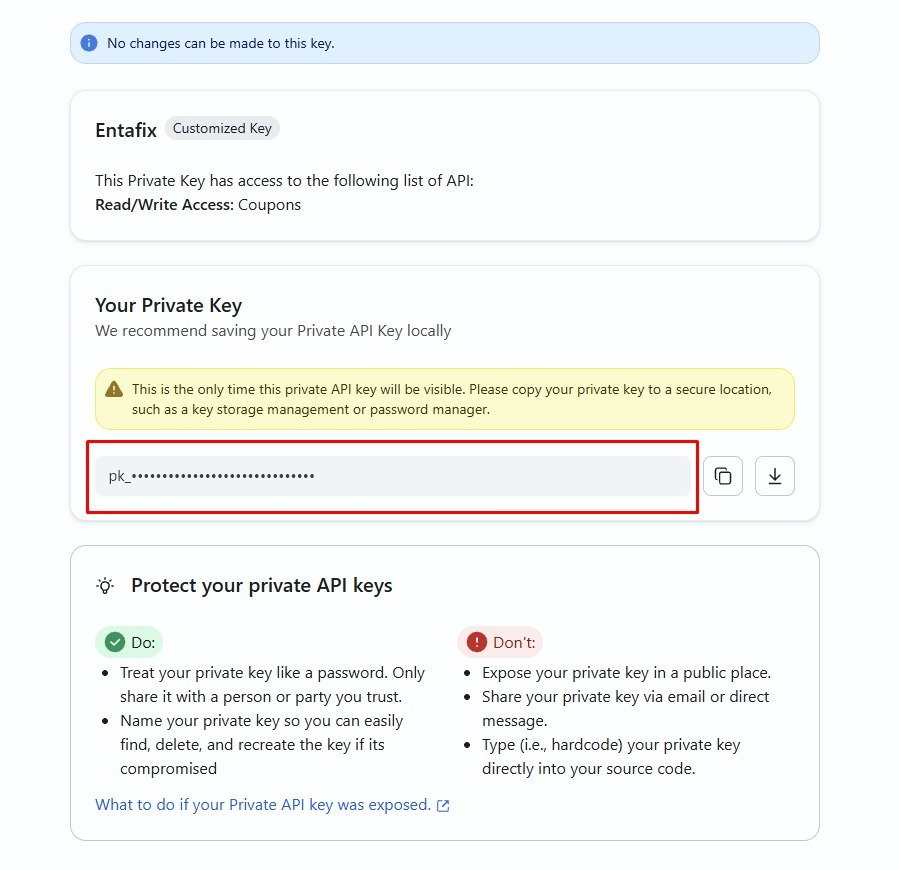
Treat the key like a password. Paste it only into DiscountFix, not into an email or chat. If it was shared by mistake, delete it in Klaviyo and create a new one.
Connect Klaviyo
- In DiscountFix, open Settings.
- In the Klaviyo card, paste the key into Private API key.
- Click Connect. DiscountFix checks the key with Klaviyo, and the card shows Connected · key …1234 with the key's last four characters.
The key is stored encrypted and never shown again; only the last four characters are. To switch to another key, disconnect and connect the new one.
Send a set to Klaviyo
An existing set
- On the Discount Codes page, open ⋯ on the set and choose Send to Klaviyo.
- Check the Klaviyo coupon name. It's suggested from the set's title and can use letters, numbers and
_only (Klaviyo doesn't accept spaces or hyphens). If a coupon with this name already exists in Klaviyo, the codes are added to it. - The window shows how many codes will be sent now, and how many are skipped and why.
- Optionally turn on automatic refill.
- Click Start sending.
A new set
When Klaviyo is connected, the create page has a Connections card. Check Sync codes to Klaviyo and the set is sent to a coupon named after its title as soon as it's saved. Codes go to Klaviyo while they're being generated.
Which codes are sent
Only codes a customer can still use. These are skipped:
| Skipped | Why |
|---|---|
| Already in Klaviyo | Sent before. A code is never sent twice. |
| Used | Redeemed at least once, or no uses left. |
| Reserved by Flow | Handed to a customer by the Reserve a unique discount code action. |
| Expired | The discount has ended. |
| Deleted | Removed from the discount in Shopify. |
| Rejected by Shopify | Codes Shopify didn't accept when the set was created. |
The set's end date stays in Shopify. Klaviyo may still hand out a code after the discount ends, but Shopify won't accept it at checkout. Extend the set's dates if a campaign runs longer.
Use the codes in Klaviyo
In Klaviyo, the coupon appears under Content › Coupons with the name you chose. Add it to an email or a flow email the way Klaviyo describes for uploaded coupons, for example with the template tag:
{% coupon_code 'Your_Coupon_Name' %}Each recipient gets a different code, and Klaviyo remembers who got which. When the pool is empty, Klaviyo skips the message instead of sending it without a code, so keep enough codes in the set, or turn on refill.
Automatic refill
For flows that run every day (welcome series, birthdays, win-back), turn on Automatically add codes when running low in the Send to Klaviyo window. You can turn it on when you start, or later from the same window (open ⋯ → Send to Klaviyo again and click Save).
| Field | What it does |
|---|---|
| Threshold | When fewer codes than this are left (unassigned in Klaviyo, plus codes not sent yet), new codes are added. 1 to 100,000. Default 500. |
| Codes to add | How many codes each refill creates. 100 to 50,000. Default 1,000. |
- The check runs every hour. New codes are generated in the same set, in the same format, and sent to the same coupon.
- Refill codes count toward your monthly code allowance. If the allowance is used up, the refill is skipped and the set's history says so.
- While a batch of the set is still being generated, the refill waits.
Status and history
The Klaviyo card in Settings lists every set that sends codes to Klaviyo, with its coupon, how many codes were sent, and its refill rule.
| Status | Meaning |
|---|---|
| Sending | Codes are on their way. The card updates by itself every few seconds. |
| Up to date | All available codes are in Klaviyo. New codes are sent automatically. |
| Nothing to send | The set has no unused codes, for example because it ended. |
| Paused | You paused it, or Klaviyo was disconnected. |
| Stopped | An error stopped it. The reason is shown under the set's name. |
History on a row lists what happened to that set: when sending started, how many codes went out, codes Klaviyo didn't accept, refills, pauses and errors.
Pause, resume, disconnect
- Pause stops sending new codes. Codes already in Klaviyo stay there and keep working. Resume picks up where it stopped.
- Disconnect Klaviyo (bottom of the card) deletes the key from DiscountFix and pauses every set. Nothing is deleted in Klaviyo. After connecting again, resume the sets you want to keep sending.
- Deleting the key in Klaviyo has the same effect as a rejected key: the card shows Key rejected. Connect a new key there; sets that stopped because of the key restart by themselves.
Troubleshooting
| You see | What to do |
|---|---|
| missing required scopes | The key lacks Coupon Codes or Coupons Full Access. Create a new key as shown above and connect it. |
| Key rejected | The key was deleted or changed in Klaviyo. Paste a new key into the card. |
| Nothing to send | Every code of the set is used, expired or reserved. Add codes with +, or turn on refill. |
| Fewer codes in Klaviyo than in the set | Open Send to Klaviyo on the set: the breakdown shows how many were skipped and why. |
| Codes not accepted by Klaviyo | The number is shown on the row, and History shows the reason Klaviyo gave. |
Klaviyo allows up to 500 active coupons per account. Reuse a coupon name for related sets if you get close.